 @phpeterle Blog
 Generating reports is a very common feature in backoffice applications. I did contract work for a company that sold reports, and they had to be Pixel Perfect, with pagination, no rendering errors, and page breaks that didn’t lose content. Along the way I picked up a lot of tips on how to get the most out of this library.
The basics
React-PDF isn’t a React-only library for generating PDFs with React: it generates PDFs from JSX. That means you can also generate PDFs in Node.js with the same code without much trouble. The quick start is very good and quite simple.
You can define styles in a separate file with StyleSheet.create and then import them in other files to reuse code. You can also split things into components the same way you would in a React project.
What sets this library apart is that you choose how it renders: via stream, to a file, or straight into a Viewer component on the frontend.
Components
The list of components is pretty short:
- Document: the parent component of every PDF
- Page: represents one page of a PDF (in practice a page component can represent up to n pages, I’ll explain this in the pagination section)
- View: similar to a
<div>in HTML, for grouping items and applying styles - Text: displays text
- Image: an image
With just these 5 components you can already build most PDFs. The official docs list the parameters for each one, but they’re very close to React styles. Keep in mind that not every style is supported, so check the styling documentation for compatibility. One nice thing is that you can use media queries. There aren’t many uses for them, but they can come in handy.
In short, you’ll use the View component together with Flexbox to position elements, Text to show text inside the views, and Image for images. No big secrets so far.
The little secrets
Breakable vs. unbreakable components
When content moves from one page to the next, you may want certain content to stay together, a table for example, so the user can see all the information at once.
Earlier I said a Page component represents a single page, but if you put a lot of text inside it, you’ll probably need more than one page to show it all. To get that result, we can mark our component with the wrap flag.
import { Document, Page, View } from '@react-pdf/renderer'
const doc = () => (  <Document>    <Page wrap>      <Text>      // Lots and lots of text      </Text>    </Page>  </Document>);
That way we get exactly the number of pages needed to show all the content.
Another common problem is keeping paragraphs together: when moving from one page to the next, we may want each paragraph to stay in one piece.
import { Document, Page, View } from '@react-pdf/renderer'
const doc = () => (  <Document>    <Page wrap>      <Text wrap={false}>      // First paragraph      </Text>      <Text wrap={false}>      // Second paragraph      </Text>      <Text wrap={false}>      // Third paragraph      </Text>      <Text wrap={false}>      // Fourth paragraph      </Text>    </Page>  </Document>);
Without wrap={false}

With wrap={false}


Setting wrap to false stops the component from being split when the page changes. So if the fourth paragraph can’t fit on a single page, it won’t cut the text in half: it moves the whole Text component to the next page.
- Breakable components (wrap={true}): those where wrap is true by default (View and Text), which will try to fill all the space on the page.
- Unbreakable components (wrap={false}): those that can’t be split. If there’s no room on the page, they’re rendered on the next one.
Fixed Components
These show up on every page, which makes them perfect for headers and footers. I usually combine them with position absolute to place them exactly where I want on the page. To keep the content from sitting on top of this component, I increase the page margin by the height of the Fixed Component, so the content won’t overlap it.
import { Document, Page, Text } from '@react-pdf/renderer'
const doc = () => (  <Document>                // The default would be 30, I set 65 so the content doesn't sit on top of the footer    <Page style={{paddingBottom: '65px' }} wrap>      <Text        fixed        style={{            position: 'absolute',            fontSize: '8px',            bottom: 20,            left: 0,            right: 0,            textAlign: 'center',        }}        render={({ pageNumber, totalPages }) =>            `Page ${pageNumber} of ${totalPages}`        }       />    </Page>  </Document>);
Word breaks
ReactPDF has the concept of hyphenation, which lets you control how words break in the text. In general I recommend turning this feature off to avoid problems. The function responsible for it receives the word and returns an array with the ways it can be split. If you don’t want to split it, just return an array containing the word.
import { Font } from '@react-pdf/renderer'
const hyphenationCallback = (word) => { return [word]}
Font.registerHyphenationCallback(hyphenationCallback);
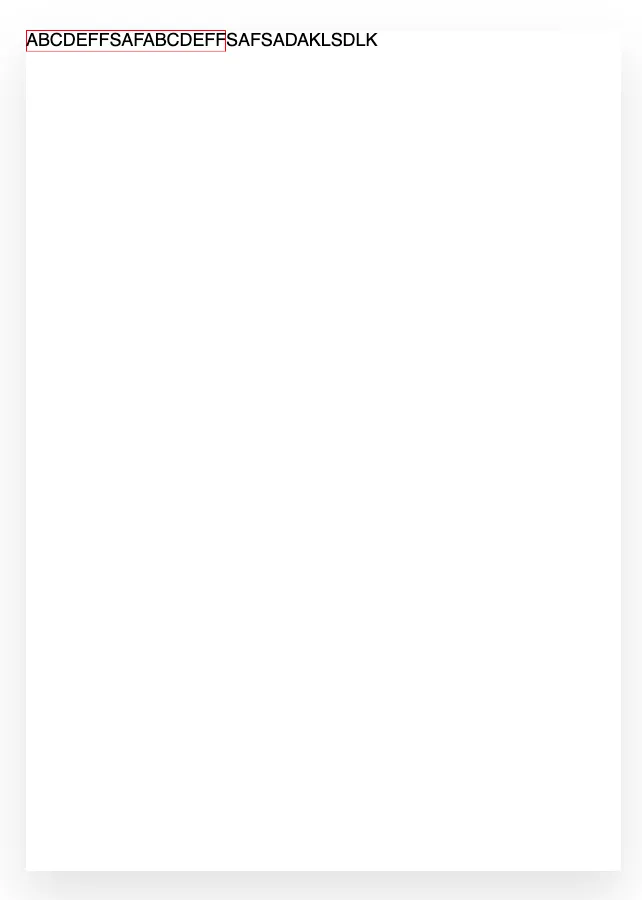
This way it won’t break any word. However, you can run into a problem if the word is bigger than the View (example in the image below): in that case you’ll get an overlap. For those specific cases you can add a condition to break those words when needed.
Tables
Building tables is the most painful part of using this lib, because there’s no dedicated component for it. It’s up to you to create your own. It may look simple at first, until you have to deal with borders and pagination. I recommend looking at how existing libraries implement it, such as @ag-media/react-pdf-table.
The part to watch out for is the borders, because they’re conditional. For example, say the first row always has a top border. When you draw the last row of the table, it needs both a top and a bottom border.
Column widths should also be flexible. One suggestion is to work with percentages: the full row takes 100%, and you set each column to X%. That gives you flexibility and room to customize.
Another annoying case is tables that span more than one page. Whenever you know a table fits on one page, I suggest using wrap={false}. Besides making it easier to read, it also avoids rendering problems.
Even so, this happens a lot:
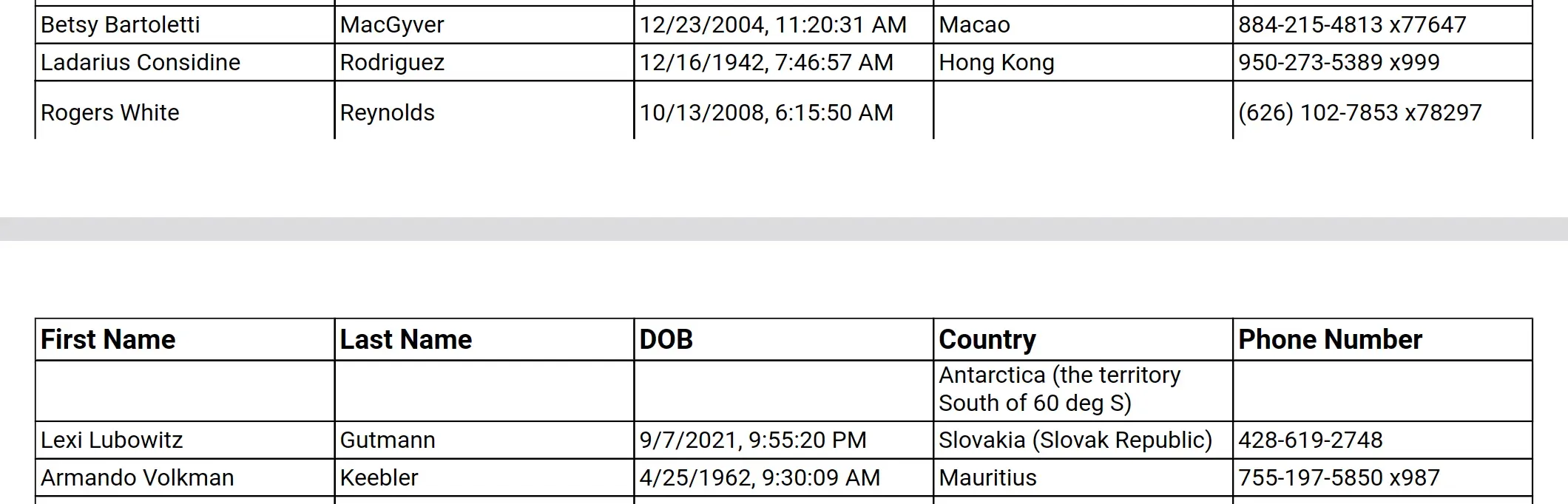
Since the margins are conditional, you can hit this problem. To work around it I did the following: I forced the table to always start on a new page with the break attribute, set a fixed height for each row and calculated the maximum number of rows that would fit. Then I split the table manually and started the remaining rows on the next page.
There’s probably another solution to this problem, but I didn’t find one, and this way worked.
Storybook
Since React-PDF also produces a React component, you can use Storybook to document your PDF. It improves your code’s documentation a lot and makes future maintenance easier.
My suggestion is to take a look at woovi’s repository, which implements a Storybook and a modular architecture for building multiple PDFs.