 @phpeterle Blog
 What it is
Docker is a tool for containerizing applications. In other words, it makes it easier to create, distribute and run applications inside containers.
The idea behind using containers is that they let you create isolated environments to run your application.
Why do we need an “isolated environment” to run our applications?
There are several reasons. The main one is that it standardizes how the program runs: when you create a container you pin the version of each dependency, so every time you run the program the result is the same, regardless of which operating system or server it’s running on.
It’s also one of the ways we can make sure one application doesn’t affect how another one works. Large companies usually have many applications. Think of an e-commerce site, for example. You might have one server dedicated to payments, another that sends notifications by email and WhatsApp, another that handles the inventory logic, another that loads the product listing, and so on.
So each of these applications needs to be independent, which makes it easier to find failures and fix them quickly. This follows a development pattern of avoiding coupling between services. The more separate they can be, the better.
The result is several applications, each in its own container, running completely independently in a configurable and stable environment.
Main concepts
Images
An image is a template with the instructions for creating a Docker container. An image is usually based on another image. For example, you can build a Node image from an Ubuntu image to run your application. Most of the time you’ll create your own images, which define how your own applications run.
Containers
A container is a running instance of your image. You can create, stop, move and delete a container through the Docker CLI. You can also create volumes and networks.
Volumes
Containers are meant to be stateless, meaning they don’t hold state. You should be able to create and delete containers at any moment. But some kinds of applications do have state and save files locally. Databases are one example, and you can run them inside a Docker container.
However, when you delete the container you lose everything it saved. To avoid that, you can use Volumes to store your container’s data in a defined location that won’t be lost when the container is deleted.
Network
A network is a virtual network Docker creates so containers can talk to each other. They communicate using the container name as the hostname. Anything outside the network can only reach a container if you expose a port.
For example, if your Node.js application is running on port 3000 and you want to reach it from outside the container, you need to expose the container’s port 3000 with the -p flag.
There are a few types of network:
- bridge (default): containers on this network can talk to each other via internal IP, and to the host if you use -p (port mapping).
- host: uses the host’s network. You lose isolation but get better performance.
- none: the container has no network.
- custom: you can create your own networks and segment access.
Registries
A registry is where your images are stored. The main one is Docker Hub, where you’ll find all sorts of images to download.
There are other places to deploy your own Docker images too, such as the Github Container Registry.
Running your first container
For our first container, we’ll download a ready-made image called hello-world. All it does is print a text message in the terminal.
First you need Docker installed, using the tutorial.
Next, let’s download an image with docker pull
docker pull hello-worldThen we run it with docker run
docker run hello-worldThat gives us our hello-world text. The message also explains a bit of Docker’s architecture behind the scenes, which I’ll cover later in the post.
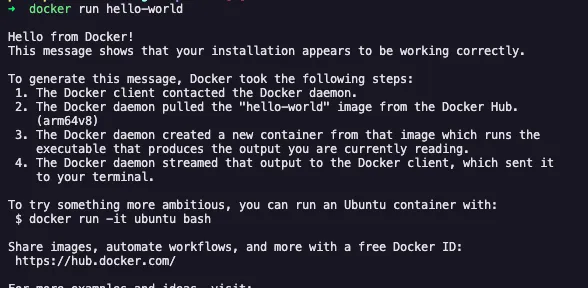
If we run the command
docker image lsWe’ll see that the hello-world image has been downloaded. The next step is to get into a container and run commands, as if it were a virtual machine.
The docker pull command is optional. Docker runs it internally if it can’t find the image locally.
Passing the -i -t flags lets us interact with the container’s terminal.
docker run -i -t ubuntuNow you can run commands inside a Linux container.
lsthe result is:
bin boot dev etc home lib media mnt opt proc root run sbin srv sys tmp usr varCreating your first image
The simplest possible example is an image for a JavaScript Node application, since it doesn’t need a build step.
Just create one more file, Dockerfile, at the project root, and in it you describe the steps to create your application’s container.
# Using the Node base imageFROM node:22-alpine
# Set the working directory inside the containerWORKDIR /app
# Copy package.json and package-lock.json first to take advantage of the cacheCOPY package*.json ./
# Install dependenciesRUN npm install --production
# Copy the rest of the codeCOPY . .
# Expose the port (if your app uses one, e.g. 3000)EXPOSE 3000
# Command to run the applicationCMD ["npm", "start"]
Each line is easy to follow, there’s not much mystery to it.
- Set which image should be the base (here it’s a Node image, which is just a Linux distro with Node 22 preinstalled to speed things up).
- Set the folder where we’ll install our app
- Copy the package.json files
- Install the dependencies
- Copy the rest of the files
- Start the application
An important tip: since we’re running npm install inside Docker, we don’t need to copy the node_modules folder. So we can create a .dockerignore file
node_modules*.logThen, to run the container, we have the command
docker build . -t seuusuario/seuprojetoThe -t parameter is a way to identify your image
That builds the image, and to run it
docker run -p 3000:3000 seuusuario/seuprojetoIf you have another step, such as a build, just add a new step to the Dockerfile
Creating a Dockerfile for more complex applications
The example above covered the basics needed to understand the main commands.
The example below comes from the Next documentation
# syntax=docker.io/docker/dockerfile:1
FROM node:20-alpine AS base
# Install dependencies only when neededFROM base AS deps# Check https://github.com/nodejs/docker-node/tree/b4117f9333da4138b03a546ec926ef50a31506c3#nodealpine to understand why libc6-compat might be needed.RUN apk add --no-cache libc6-compatWORKDIR /app
# Install dependencies based on the preferred package managerCOPY package.json yarn.lock* package-lock.json* pnpm-lock.yaml* .npmrc* ./RUN \  if [ -f yarn.lock ]; then yarn --frozen-lockfile; \  elif [ -f package-lock.json ]; then npm ci; \  elif [ -f pnpm-lock.yaml ]; then corepack enable pnpm && pnpm i --frozen-lockfile; \  else echo "Lockfile not found." && exit 1; \  fi

# Rebuild the source code only when neededFROM base AS builderWORKDIR /appCOPY --from=deps /app/node_modules ./node_modulesCOPY . .
# Next.js collects completely anonymous telemetry data about general usage.# Learn more here: https://nextjs.org/telemetry# Uncomment the following line in case you want to disable telemetry during the build.# ENV NEXT_TELEMETRY_DISABLED=1
RUN \  if [ -f yarn.lock ]; then yarn run build; \  elif [ -f package-lock.json ]; then npm run build; \  elif [ -f pnpm-lock.yaml ]; then corepack enable pnpm && pnpm run build; \  else echo "Lockfile not found." && exit 1; \  fi
# Production image, copy all the files and run nextFROM base AS runnerWORKDIR /app
ENV NODE_ENV=production# Uncomment the following line in case you want to disable telemetry during runtime.# ENV NEXT_TELEMETRY_DISABLED=1
RUN addgroup --system --gid 1001 nodejsRUN adduser --system --uid 1001 nextjs
COPY --from=builder /app/public ./public
# Automatically leverage output traces to reduce image size# https://nextjs.org/docs/advanced-features/output-file-tracingCOPY --from=builder --chown=nextjs:nodejs /app/.next/standalone ./COPY --from=builder --chown=nextjs:nodejs /app/.next/static ./.next/static
USER nextjs
EXPOSE 3000
ENV PORT=3000
# server.js is created by next build from the standalone output# https://nextjs.org/docs/pages/api-reference/config/next-config-js/outputENV HOSTNAME="0.0.0.0"CMD ["node", "server.js"]
Building the Next image is split into 3 stages: Deps, Builder and Runner.
- First it sets the base image for the Dockerfile, with the specific Node.js version to use
- Deps: downloads the project’s dependencies
- Builder: copies the files downloaded in the previous step and builds the application
- Runner: copies the files from the previous step and runs the application. Note that it creates a non-root user to make the application more secure
This example uses multi-stage build, which keeps development dependencies out of the final version, makes better use of the cache and shrinks the final image. Docker caches each build stage, so with this Dockerfile you can reuse many layers during the build. For example, if your code doesn’t add any new dependency, it won’t need to download them again to create the container: that stage gets reused.
Orchestrating multiple images
The examples above used a single image, but applications commonly depend on several images to run, whether that’s a Postgres database, Redis, a load balancer, etc. To make it easier to configure several images at once we have Docker Compose. Its goal is to simplify managing several images together. Here’s an example.
In this case we have 4 services: 2 databases, 1 application and 1 load balancer, all configured simply in the same file. This way we can say which images depend on which (depends_on), which sets the order they start in, which networks each image can access, and their environment variables.
services:  postgres:    image: postgres:16    container_name: postgres_db    environment:      POSTGRES_USER: user      POSTGRES_PASSWORD: password      POSTGRES_DB: mydb    ports:      - "5432:5432"    volumes:      - postgres_data:/var/lib/postgresql/data    networks:      - backend
  redis:    image: redis:7-alpine    container_name: redis_cache    ports:      - "6379:6379"    networks:      - backend
  app:    build: ./app    container_name: my_app    depends_on:      - postgres      - redis    environment:      DATABASE_URL: postgres://user:password@postgres:5432/mydb      REDIS_URL: redis://redis:6379    ports:      - "3000:3000"    networks:      - backend
  nginx:    image: nginx:alpine    container_name: nginx_proxy    ports:      - "80:80"      - "443:443"    volumes:      - ./nginx.conf:/etc/nginx/nginx.conf:ro    depends_on:      - app    networks:      - backend      - frontend
volumes:  postgres_data:
networks:  backend:  frontend:
Tips
Main commands
docker ps: lists all running containersdocker ps -a: lists all containers, including stopped onesdocker exec -it {tag|id}: runs a command inside the containerdocker logs {tag|id}: shows a container’s logs, useful for finding errorsdocker stop {tag|id}: stops a containerdocker rm {tag|id}: removes a container you no longer usedocker build -t <nome>:<tag> .: builds a container image from a Dockerfile and adds a tagdocker push <repo>:<tag>: pushes the image to a registrydocker pull <imagem>: downloads an image from Docker Hubdocker-compose up -d: starts the images of a docker compose file in the backgrounddocker-compose down: stops the images of a docker compose filedocker-compose logs -f: shows the logs of all imagesdocker-compose ps: lists the services
GPT is your best friend
LLMs are very good at generating Dockerfiles and docker-compose files. When in doubt, it’s worth asking a tool for help, whether to explain a feature or to help you build your own images.
Images take up a lot of space
We tend to ignore image size, but images usually take up a fair amount of space depending on the project. One tip is the command
docker image pruneIt deletes every image not in use on your machine, so be careful when you run it.
Another command that frees up a lot of disk space is:
docker system pruneIt deletes all unused containers, networks, images and cache.
Which image should you choose?
Images come in several versions. Most of the time the alpine version is the recommended one, especially for Node.js, because it uses a lighter Linux distro. There’s a more detailed explanation in the official documentation
Understanding the “magic” of containers
Before getting into the technical details, there’s an important difference worth pointing out:
- Virtual machines (VMs): simulate an entire piece of hardware and run a full operating system. This gives strong isolation but uses more resources.
- Containers: share the host’s kernel, but isolate processes, network, file system and resources. They’re much lighter and faster.
How do you isolate processes without needing a “new” operating system?
- Namespaces: isolation
- Cgroups: resource control
Namespaces
A namespace is a Linux feature whose job is to “lie” to the process, so the process thinks it’s running alone on the machine. Docker uses several namespaces to isolate a container. This matters because every system resource is global. For JS developers, it’s a similar idea to using a var versus a let variable.
Some namespaces Docker creates:
- PID: inside the container it will always have PID 1
- NET: each container has its own network layer, so each container can have its own isolated IP
- MNT: controlled mount points, each container can only access the directories Docker exposes
- UTS: lets the container have its own hostname
Cgroups
This is another Linux feature Docker uses to limit the computing resources of processes. The goal is to cap how many CPU cores, how much memory, disk and network each container can use.
One thing you can try on Linux is creating a cgroup yourself.
- Create a new cgroup
sudo mkdir /sys/fs/cgroup/meu-grupo- Set a memory limit
echo 52428800 | sudo tee /sys/fs/cgroup/meu-grupo/memory.max- Add a process to the cgroup
sleep 1000 & echo $!With the PID from the last command
echo <PID> | sudo tee /sys/fs/cgroup/meu-grupo/cgroup.procsDone! To test it you can run a stress test and check that the limits actually took effect.
Docker manages all of this for you in a simpler way. A practical example is running the command:
docker run -m 512m --cpus="1" ubuntuHere we limit memory to 512m and the number of cores to 1.
Linux vs Windows vs MacOS
If you look closely, all of these commands are Linux-only. So Docker only runs truly natively on Linux. For it to work on other systems, the standard approach is to create a Linux virtual machine so the Linux-only commands can run there.
References
https://devopscube.com/what-is-docker/ https://www.freecodecamp.org/news/how-docker-containers-work/ https://labs.iximiuz.com/tutorials/container-filesystem-from-scratch https://akitaonrails.com/2023/03/02/akitando-139-entendendo-como-containers-funcionam/